
Tips let fans send you money directly through a shareable tip link. You can create multiple tip requests with different amounts and descriptions perfect for thank-you tips, custom content requests, or special promotions.
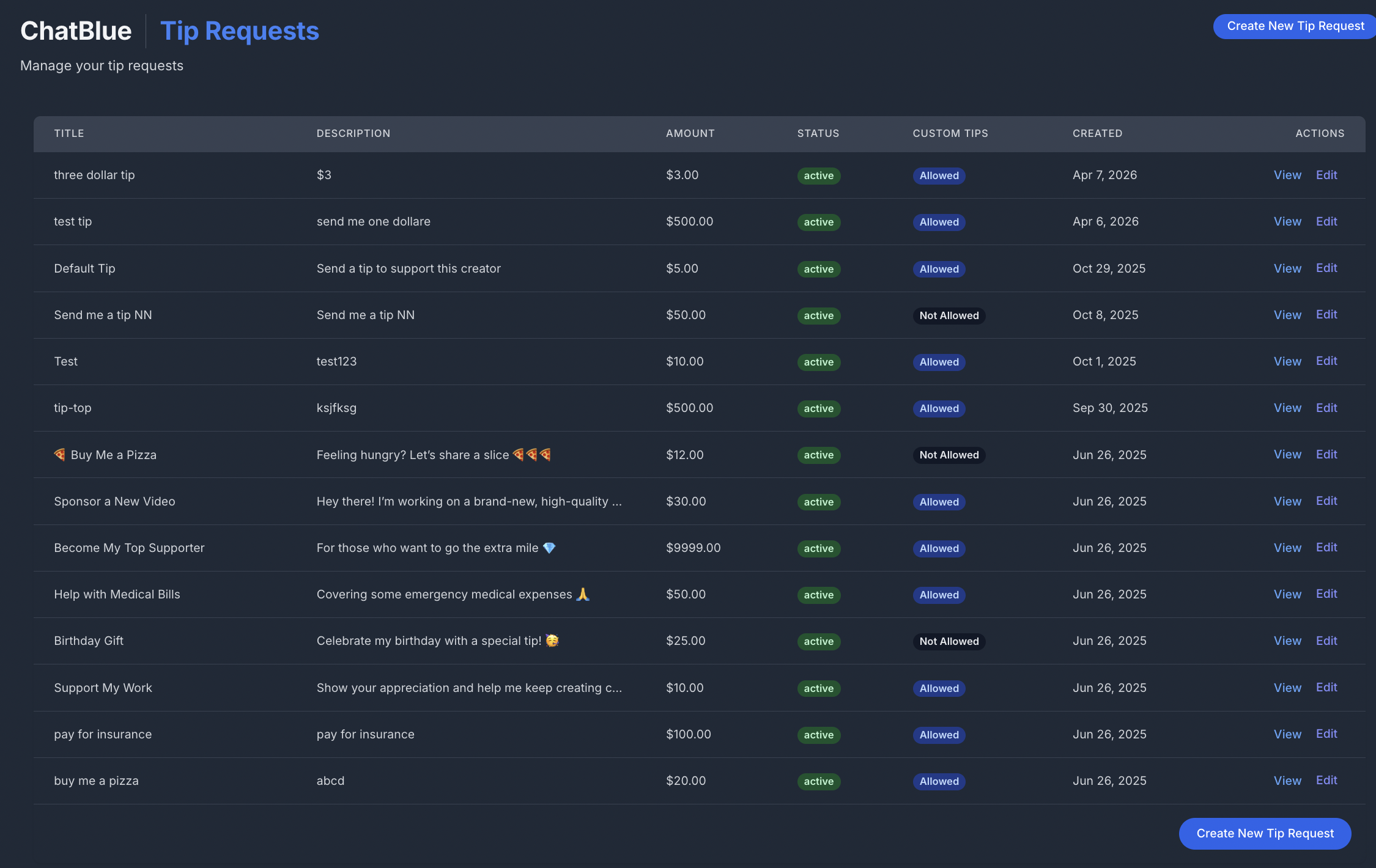
Go to Tips in the left navigation menu to view and manage all your tip requests.
Creating a Tip Request
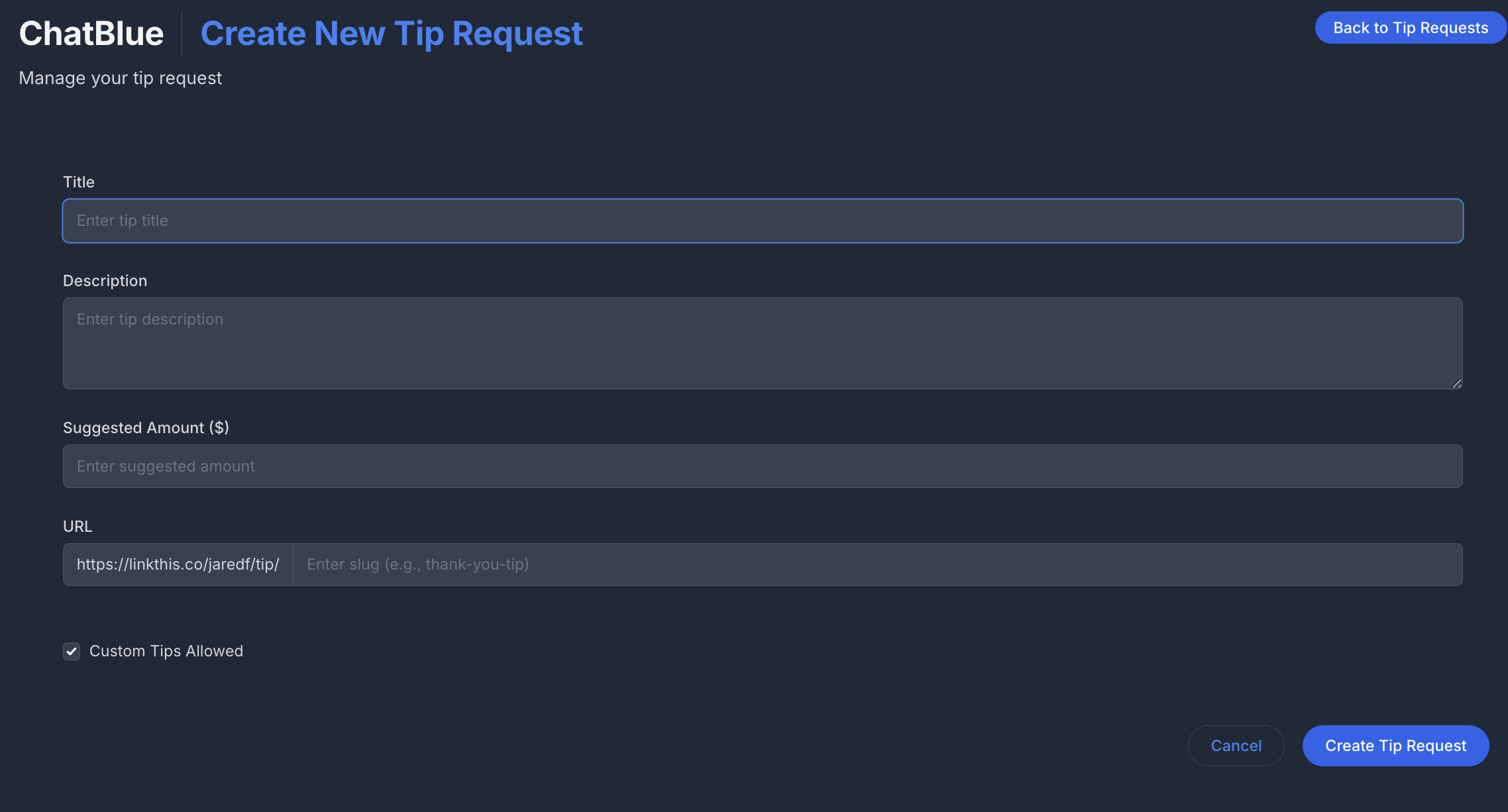
- Click "Create New Tip Request"
- Fill in the following fields:
Title - A name for the tip (e.g., "Buy Me a Coffee", "Thank You Tip")
Description - Tell fans what the tip is for
Suggested Amount ($) - Set a recommended amount between $3 and $500
URL/Slug - A custom link for this tip (e.g.,
chatblue.com/{username}/tip/thank-you). ChatBlue checks that the slug is unique.Custom Tips Allowed - When enabled, fans can enter any amount between $3–$500. When disabled, fans can only send the exact suggested amount.
3. Click "Save"
Sharing Tip Links
Each tip request has a unique URL you can share anywhere:
chatblue.com/{username}/tip/{slug}
Copy the link from the tips list and share it on social media, in direct messages, or in your bio.
What Fans See
When a fan opens a tip link, they see:
- Your profile photo and name
- The tip title and description
- The suggested amount (highlighted)
- A custom amount input (if custom tips are enabled)
- Payment options (Apple Pay, Google Pay, or card)
For default tip links (without a specific slug), fans see preset quick-select buttons: $3, $5, $10, $25, $50, $100 along with a custom amount field.

Sending Tips in Conversations
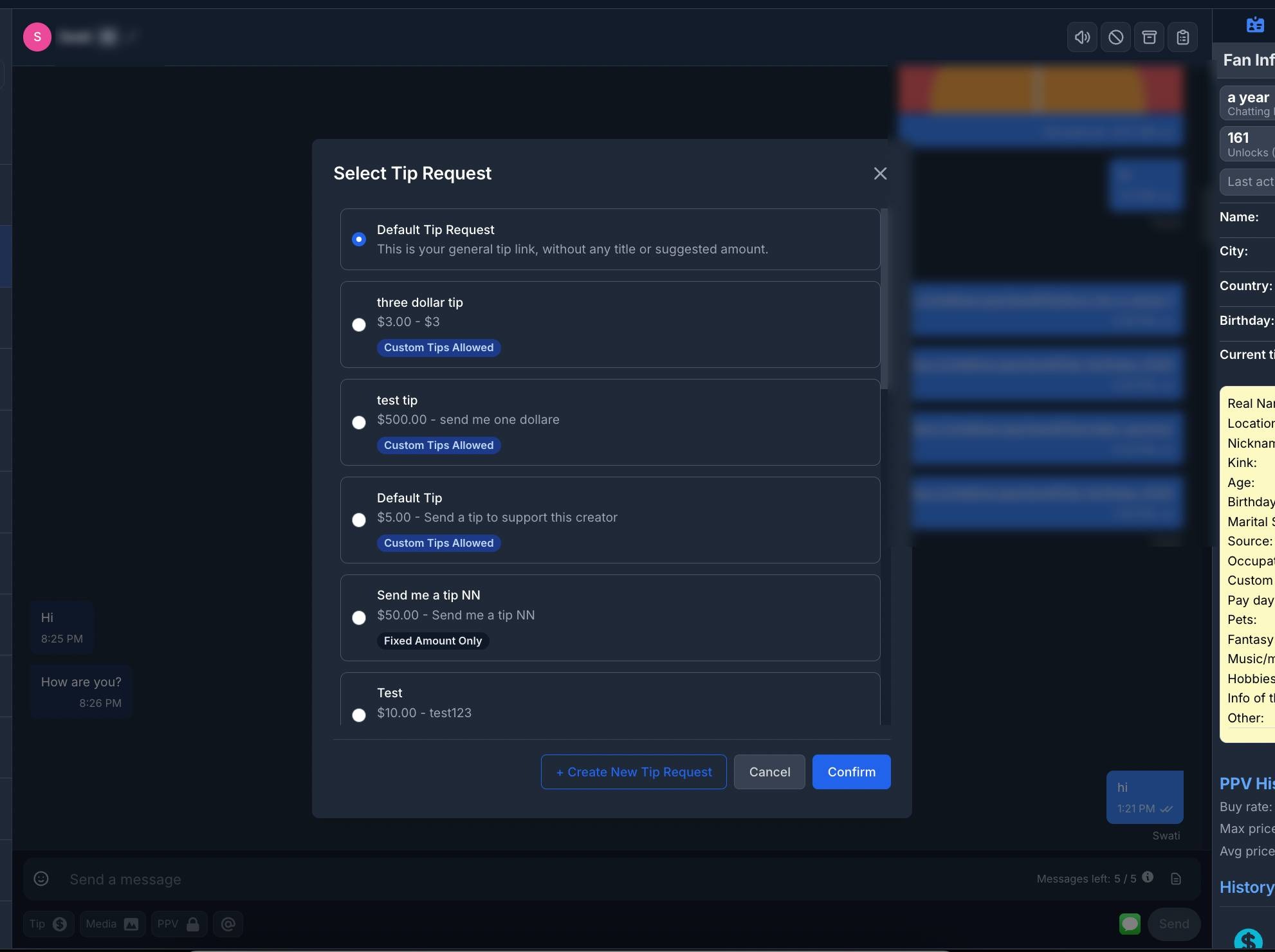
You can also share tip links directly in chat:
- Open a conversation in Messages
- Click the dollar sign icon in the message footer
- Select a tip request from the list
- The tip link is added to your message and sent to the fan
Managing Tips
From the tips list, you can:
- Edit - Click the edit button to update title, description, amount, or settings
- Archive - Change a tip's status to archived when you no longer want to use it
- View - Click the view button to open the public tip page in a new tab
Each tip in the list shows its Status (Active or Archived) and whether Custom Tips are allowed.
Tracking Tip Revenue
Tip earnings are tracked across ChatBlue:
- Messages > Fan Info sidebar - Shows total tips received from each fan
- Statistics > KPI Report - Tips revenue with period-over-period comparison
- Statistics > Chat Analytics - Tips tracked in chatter performance reports
- Statements - Individual tip transactions with amounts and dates