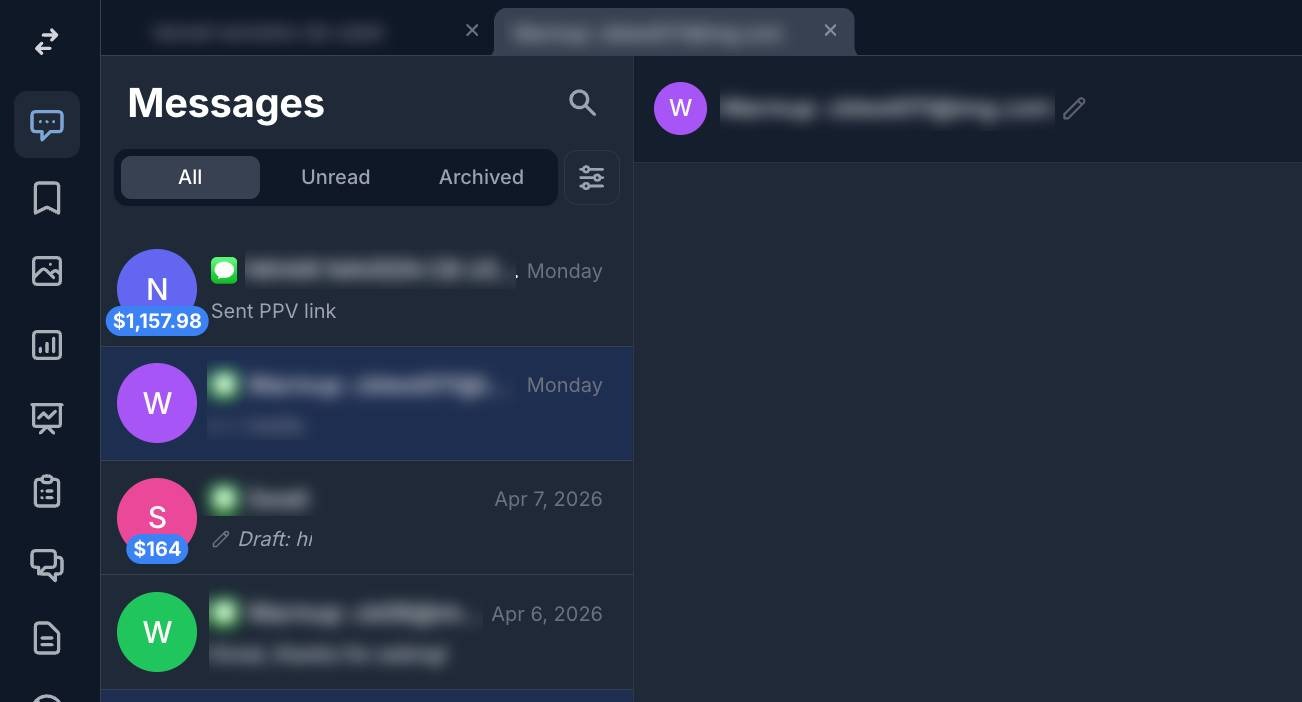
Messages is the core of ChatBlue. It's where you manage all fan conversations, send media, collect tips, and sell paid content. This guide walks you through everything you need to know.
Opening Messages
- Go to Messages in the left navigation menu
- Select an account from the account tabs at the top (if you manage multiple accounts)
- Your conversation list will load on the left, with the chat area in the center
- If you manage more than one ChatBlue account, each account appears as a tab at the top of the Messages page.
Navigating Your Inbox
Conversation Tabs
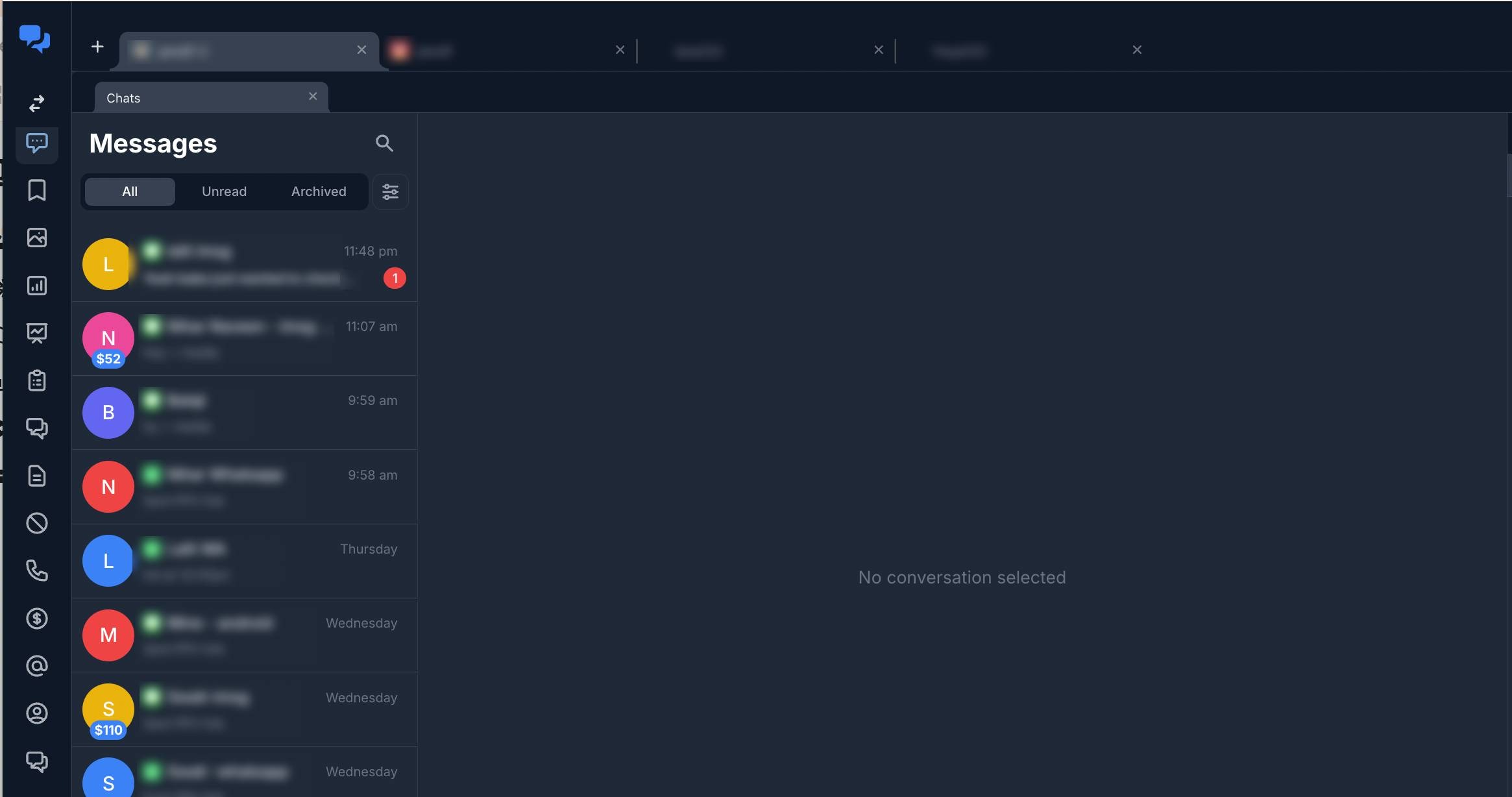
Use the tabs at the top of the conversation list to filter:
- All - Every conversation
- Unread - Only conversations with unread messages
- Archived - Conversations you've archived
Click the search icon at the top of the conversation list and type a fan's name to find their conversation.
Search
Click the search icon at the top of the conversation list and type a fan's name to find their conversation.
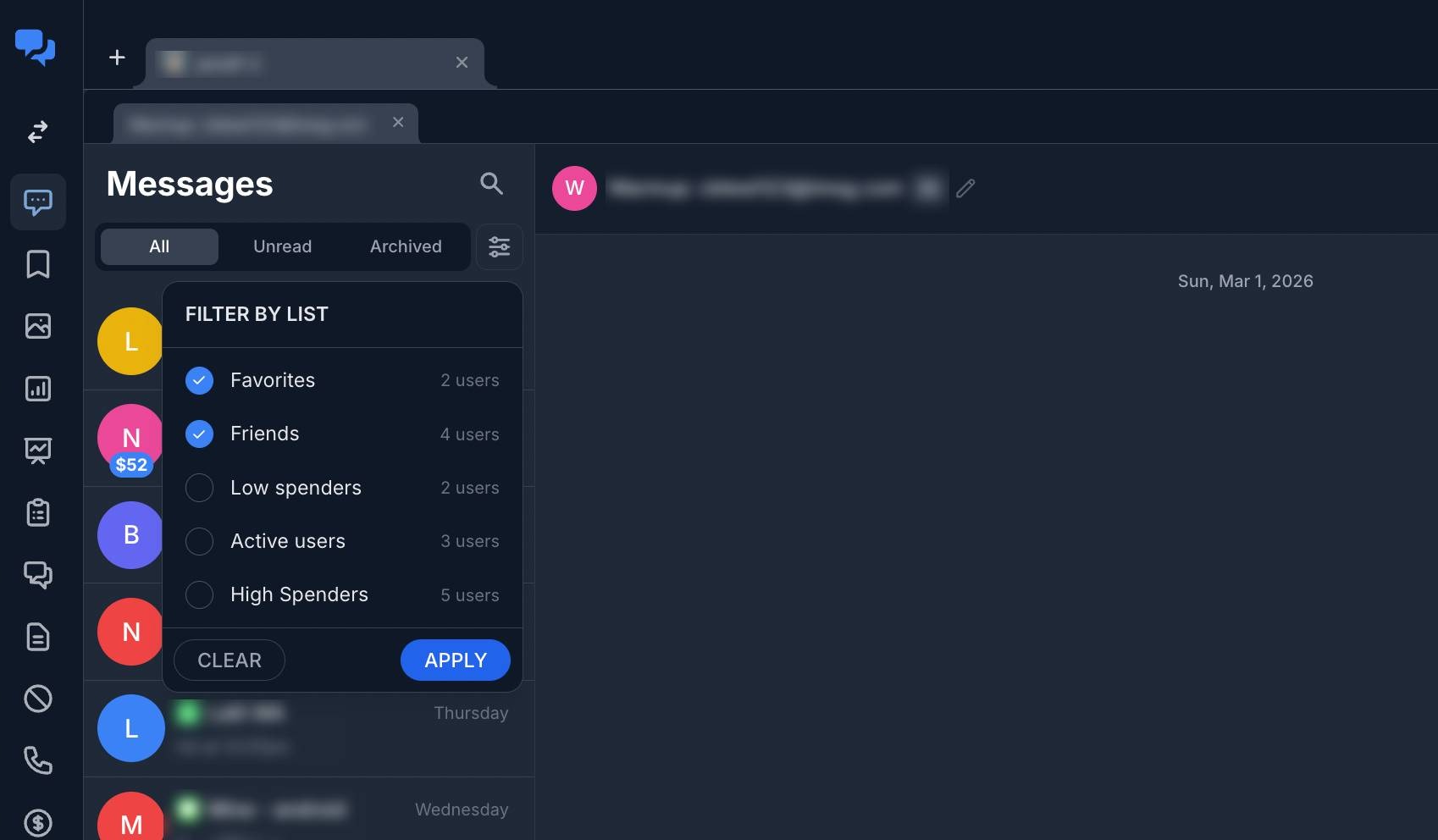
Filter by Fan List
Click the filter icon next to the search to filter conversations by Fan Lists. Select one or more lists, then click Apply. A badge shows how many filters are active.
Conversation Preview
Each conversation in the list shows:
- Fan name and avatar (with initials)
- Channel icon - iMessage (green), SMS, or WhatsApp
- Last message preview - Truncated text, or indicators like "Sent PPV link", "Received media", or tip/unlock icons
- Date - Time, day, or date of the latest activity
- Unread count - Red badge if there are unread messages
- Total spend badge - Blue badge showing how much the fan has spent (e.g., $52)
- Mute icon - Appears if the conversation is muted
Reading and Sending Messages
Opening a Conversation
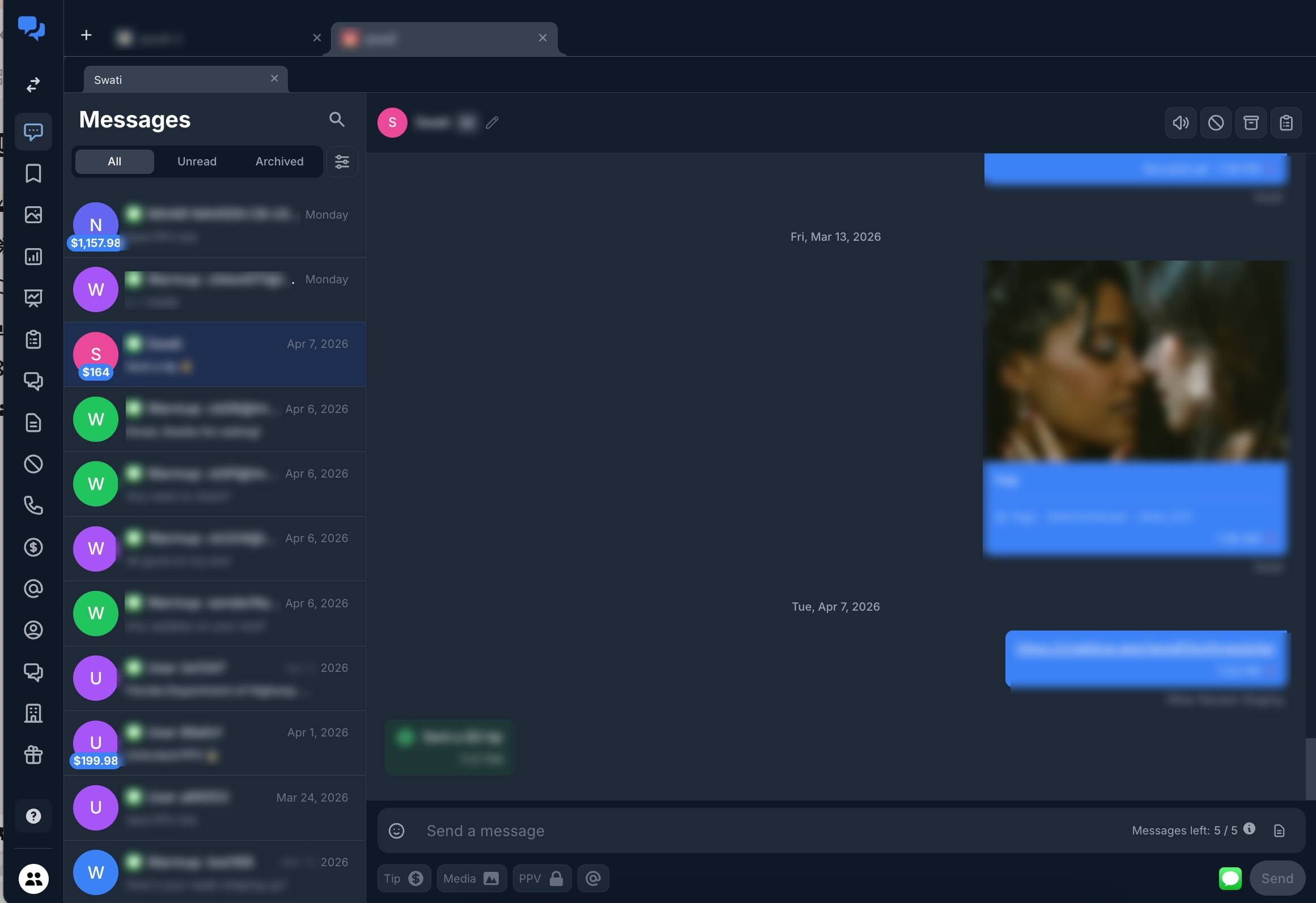
Click any conversation in the list to open it. The chat area loads the full message history with infinite scroll - older messages load as you scroll up.
Sending a Text Message
- Type your message in the input field at the bottom
- Press Enter to send
ChatBlue checks for banned words (restricted terms, anything illegal) before sending and will warn you if any are detected.
Sending Free Media (directly in iMessage/WhatsApp)
- Click the media icon in the message footer
- Browse your Vault and select one or more media items
- Drag to reorder if sending multiple files
- Press Enter or click send
Sending Paid Content (PPV)
- Click the media icon and switch to PPV mode
- Select media from your Vault, set media as paid/preview.
- Set a price for the unlock
- Send - the fan receives an unlock link to purchase
Sending a Tip Request
- Click the dollar sign icon in the message footer
- Select from your pre-configured tip request, or send a generic request
- A tip link is appended to your message and sent to the fan
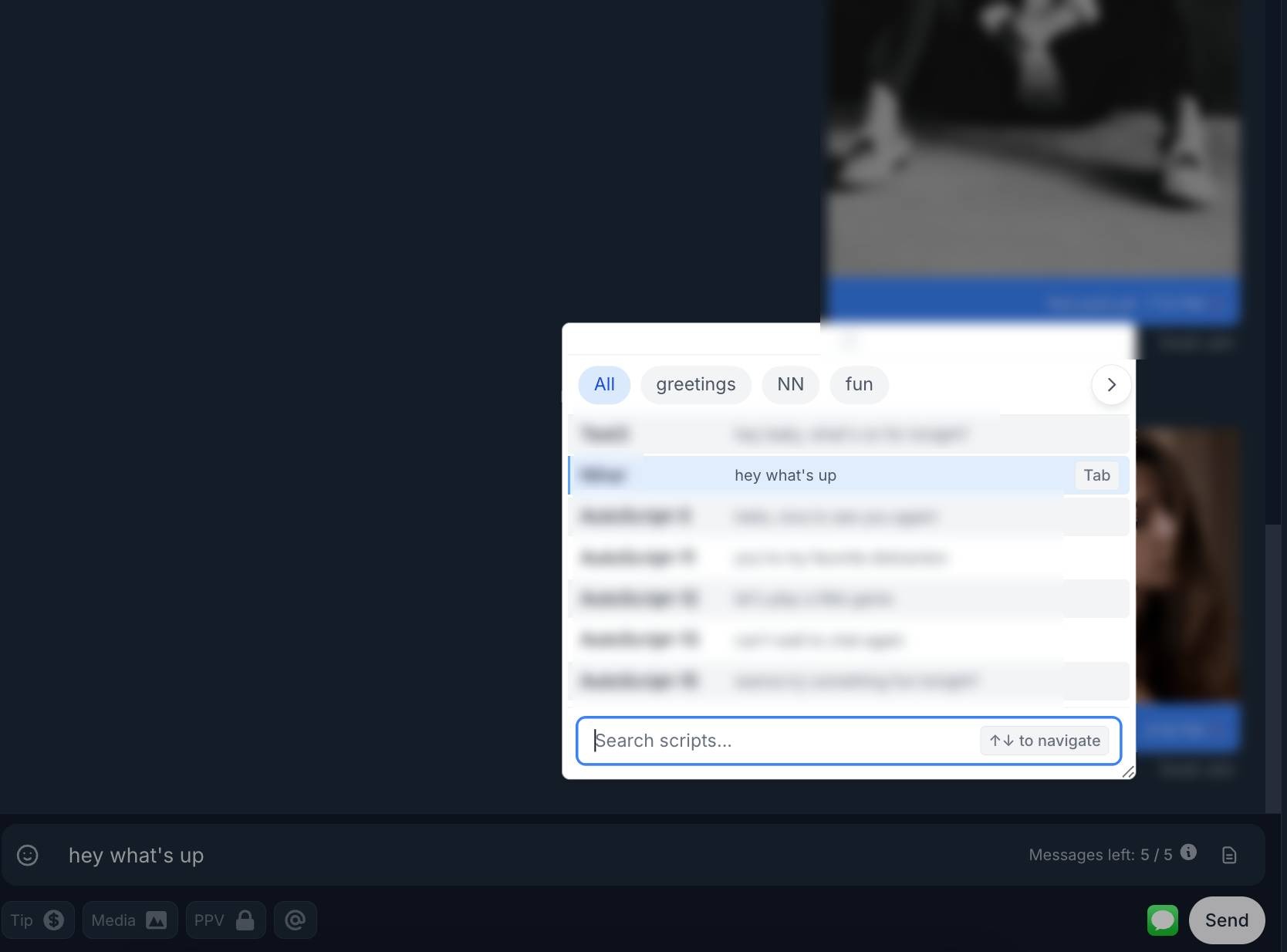
Using Scripts
- Click the script icon in the message footer
- Browse your saved script templates
- Click a script to insert its content into the message field
Adding Emojis
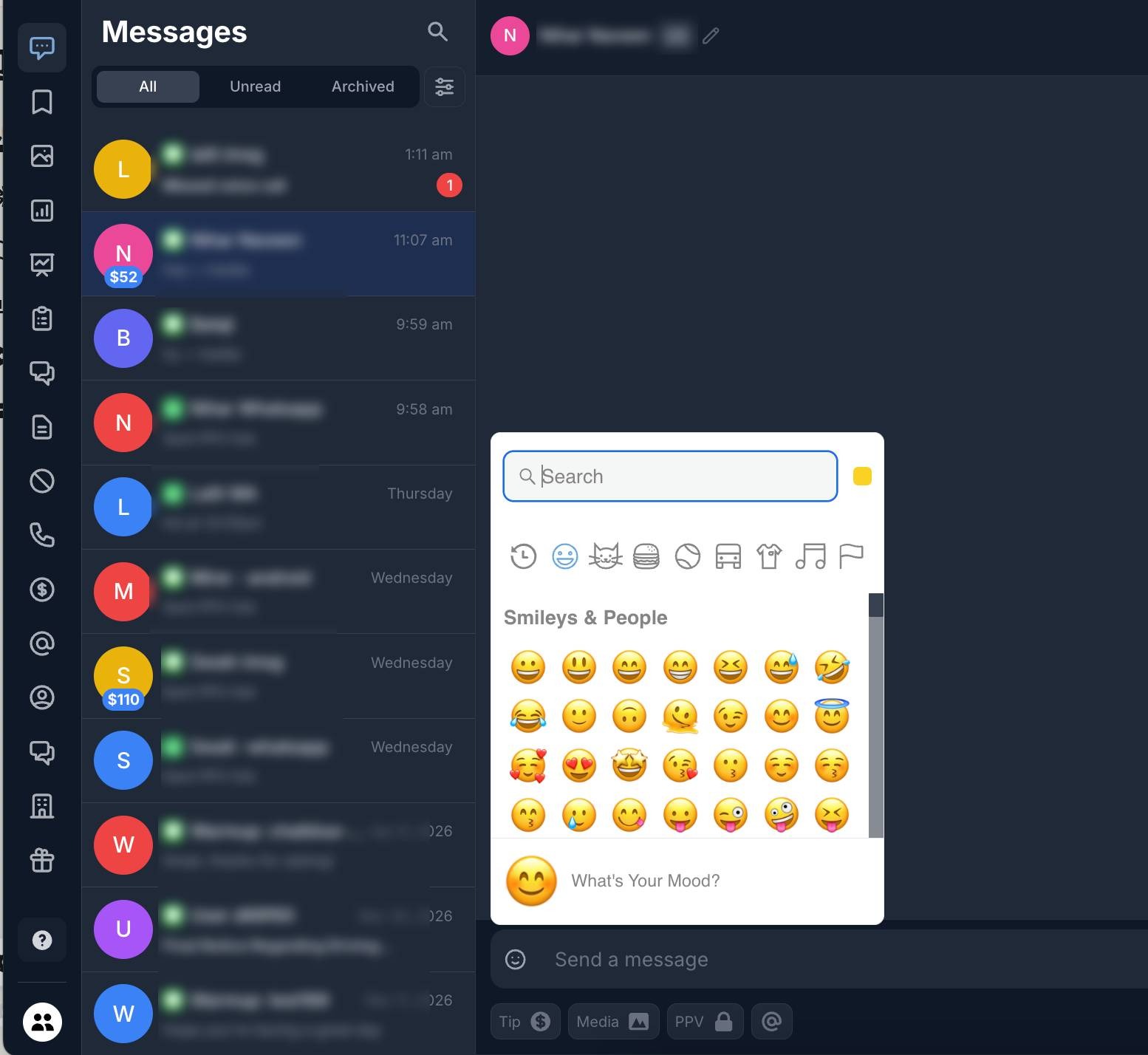
Click the emoji icon to open the emoji picker. Recently used emojis are saved for quick access.
Conversation Actions
In the conversation header, you have quick access to:
- Edit fan name - Click the pencil icon to update the fan's display name
- Mute - Silence notifications for this conversation
- Block - Block the fan from sending messages
- Archive - Move the conversation to the Archived tab
- Fan Lists - Add or remove the fan from lists directly from the header
Fan Info Sidebar
The right sidebar shows detailed information about the selected fan. Click the info icon on mobile to toggle it.
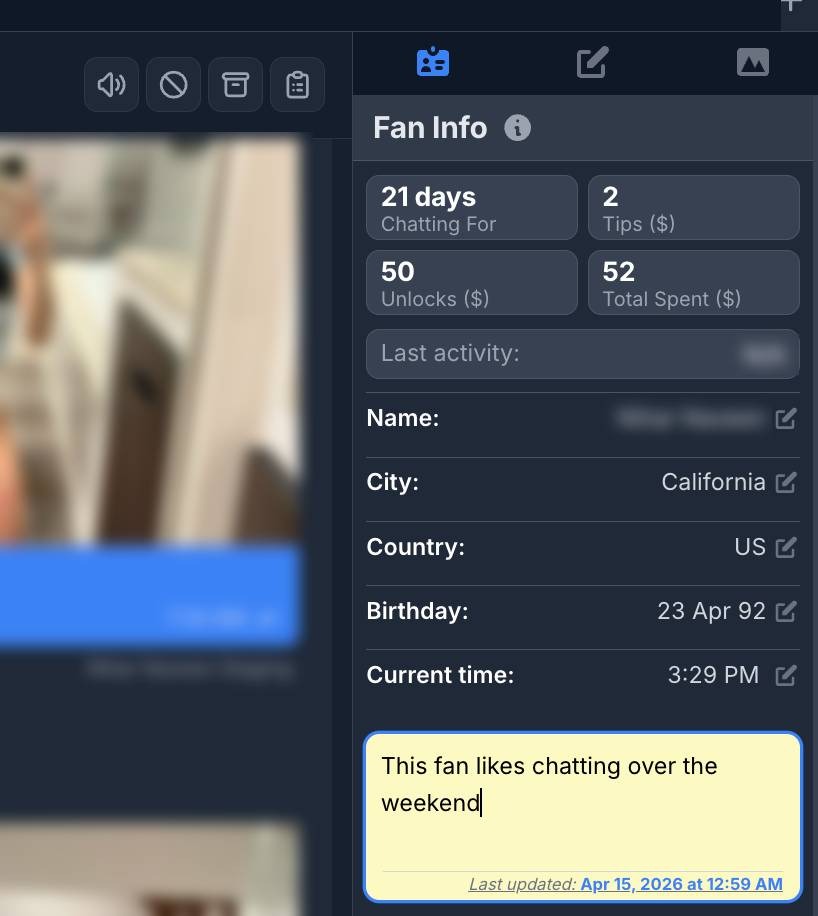
Fan Statistics
- Chatting For - How long you've been chatting with this fan
- Tips ($) - Total tip revenue from this fan
- Unlocks ($) - Total content unlock revenue
- Total Spent ($) - Combined total the fan has spent
- Last Activity - When the fan was last activeFan Details
Fan Details
- Name - The fan's display name (editable)
- City - Fan's location (editable)
- Country - Fan's country
- Birthday - Fan's date of birth (editable)
- Current Time - The fan's local time based on their timezone (editable)
Notes
Add custom notes about the fan in the notes field (e.g., "This fan likes chatting over the weekend"). Notes show a timestamp of when they were last updated.
PPV History
Below the fan details, the sidebar shows the fan's PPV (Pay Per View) purchase history:
- Buy Rate - Percentage and count of PPVs purchased vs sent (e.g., 29% - 2/7)
- Max Price - Highest PPV price sent to this fan
- Avg Price - Average PPV price
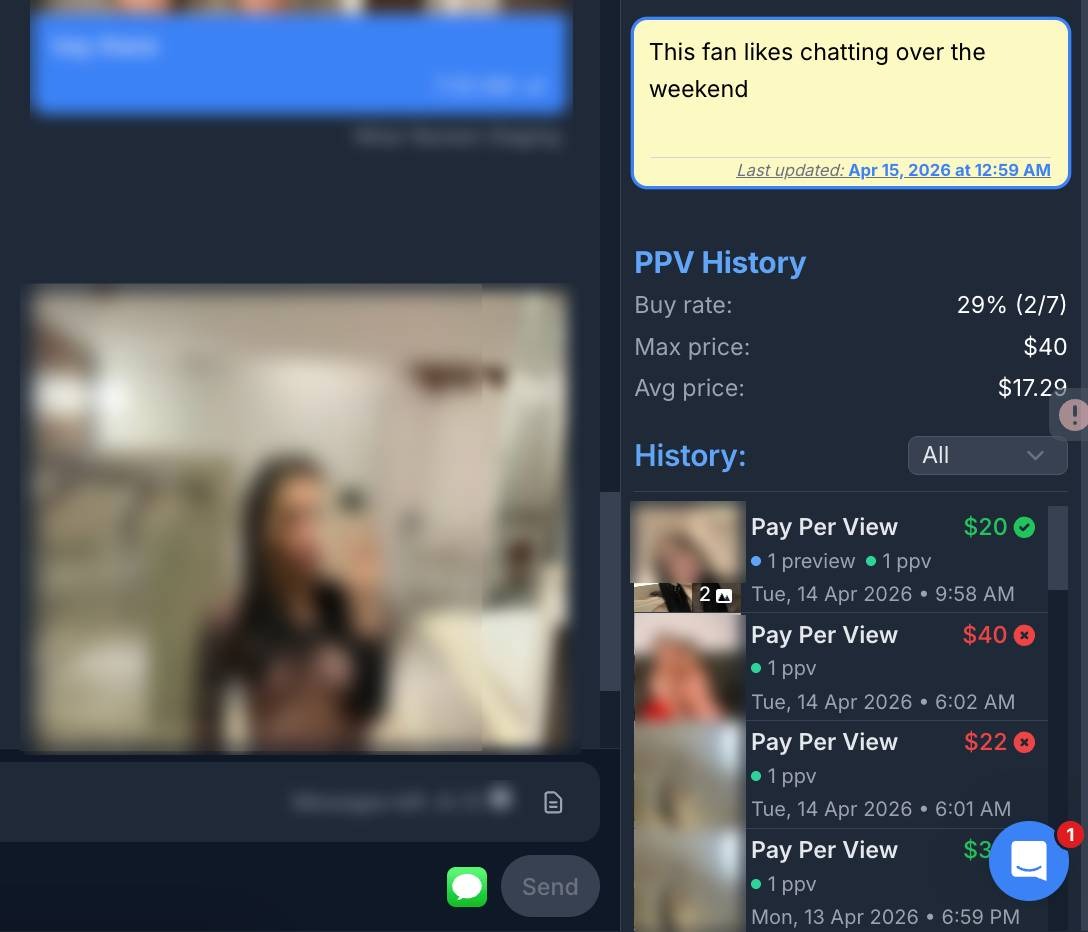
A scrollable activity feed showing all transactions with this fan - PPV purchases, tips, and unlocks - with amounts, dates, and purchase status (green checkmark for purchased, red X for not purchased).
Drafts
If you start typing a message but don't send it, ChatBlue automatically saves it as a draft. When you return to that conversation, your unsent message will still be there. Drafts appear in the conversation list as "Draft: [message preview]" in italic.