
Roles define which Public API endpoints a key is allowed to use. By assigning roles to your keys, you make sure each integration only has the access it needs.
Before You Begin
Accessing Roles & Permissions
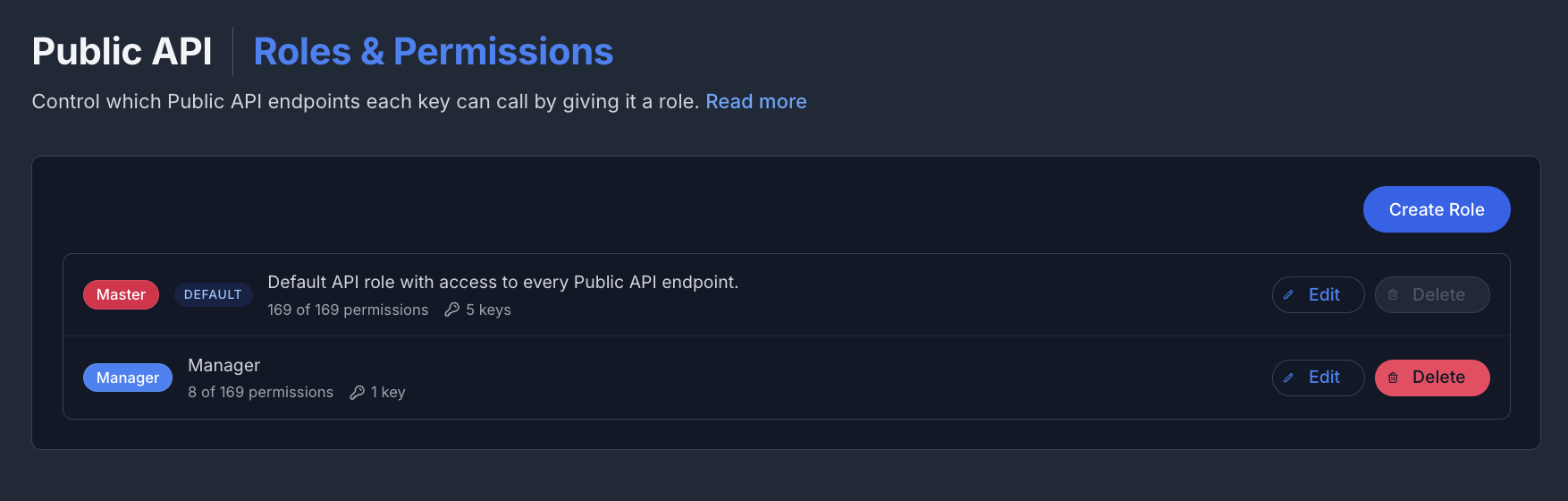
Go to Public API in the left navigation menu (under the Organization group) and click Roles & Permissions.
Each role shows its name, an optional description, how many permissions it includes (for example, 130 of 147 permissions), and how many keys use it.
Creating a Role
Click "Create Role"
Enter a Role name and an optional Role description
Pick a Color for the role badge using the color picker
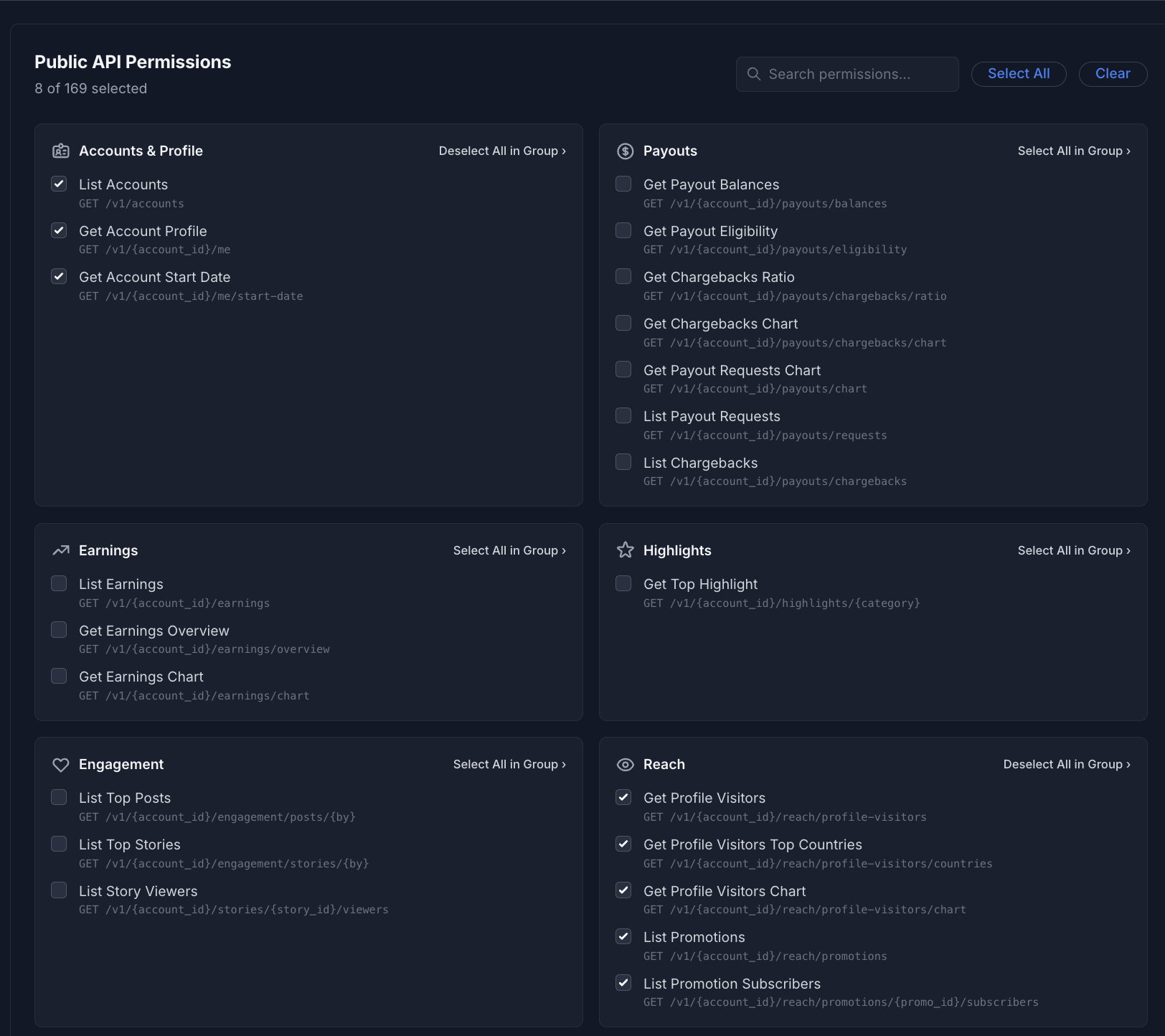
Under Public API Permissions, select the endpoints this role can call:
- Use the Search permissions... box to find a specific permission
- Click "Select All" or "Clear" to toggle everything at once
- Within a category, click "Select All in Group ›" to toggle just that group
5. Click "Create Role"
Editing a Role
Click "Edit" next to a role, adjust its name, description, color, or permissions, then click "Update Role".
Deleting a Role
Click "Delete" next to a role, then confirm by clicking "Delete Role".
A role cannot be deleted if:
- It is the default role, or
- It is still assigned to one or more API keys — revoke or reassign those keys first
Assigning Roles to Keys
You assign roles to a key when you create it, or later using "Edit roles" on the API Keys page. A key can have more than one role, and its access is the combined permissions of all its roles.
API Reference
Building an integration on top of the Public API? The docs cover endpoint references, request examples, and a live request playground:
- Introduction — What the Public API can do and how to get started
- Authentication — How to authenticate your requests
- API Keys — Passing your API key in requests