
The Creator Events feature allows you to schedule and track various types of creator activities beyond regular shifts. This is especially helpful for live streaming, as it allows you to plan and communicate when creators will be going live, ensuring both the team and audience know when to expect content.
You can filter the calendar view using the dropdowns at the top:
- Creator: Filter by a specific creator
- Month and Year: Choose the month you want to view
- Search/Reset: Use these buttons to apply your filters or clear them
Creating a Creator Event
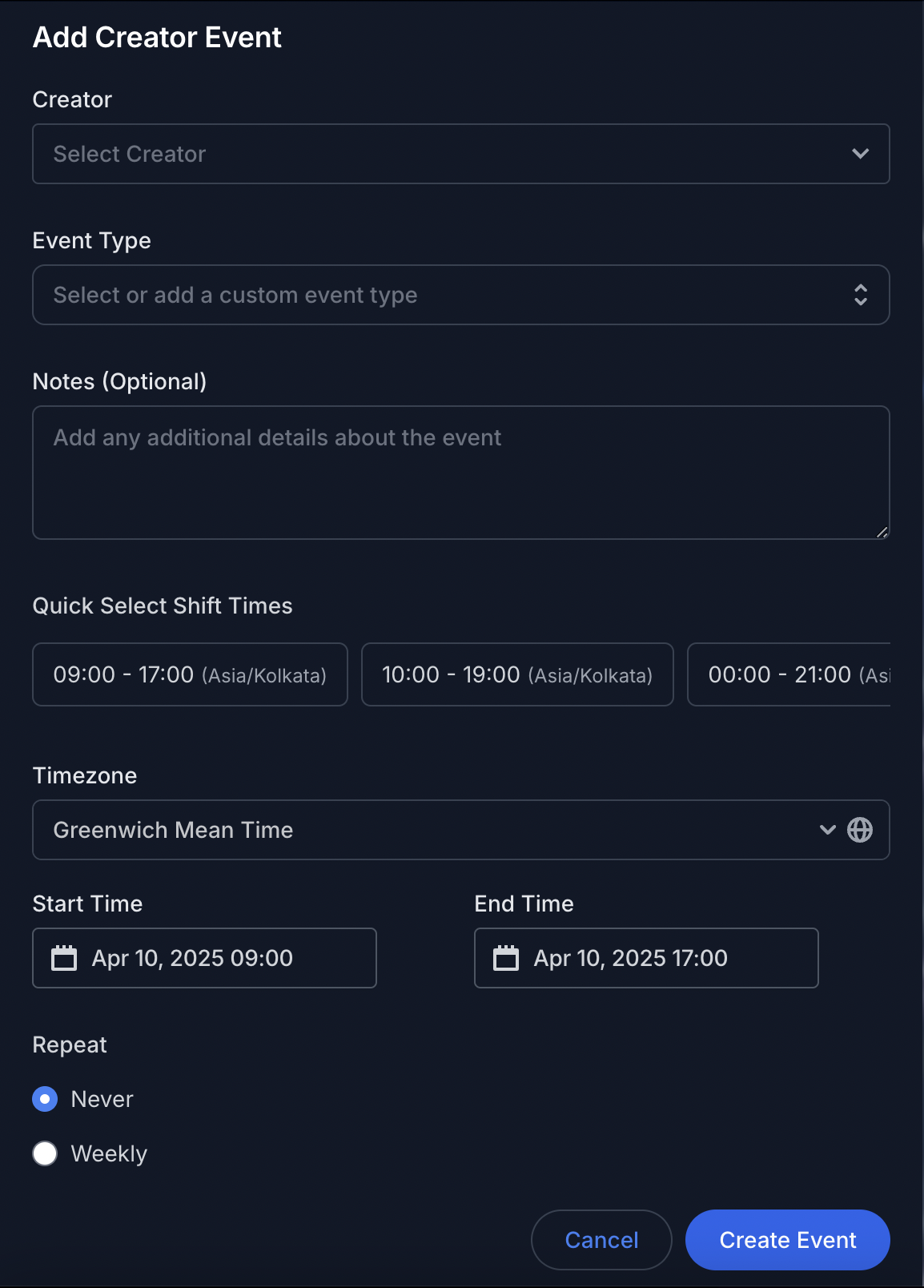
Click the "Add Creator Event" button in the calendar view
Complete the form with these details:
- Creator: Select the creator from the dropdown menu
- Event Type: Choose from the predefined options or create a custom event type
- Notes (Optional): Add specific details about the event's content, requirements, or other relevant information
- Timezone: Select the appropriate timezone (defaults to Africa/Abidjan)
- Start Time and End Time: Set when the event begins and ends
- Repeat: Choose "Never" for one-time events or "Weekly" for recurring events
Click "Create Event".
Event Types Available
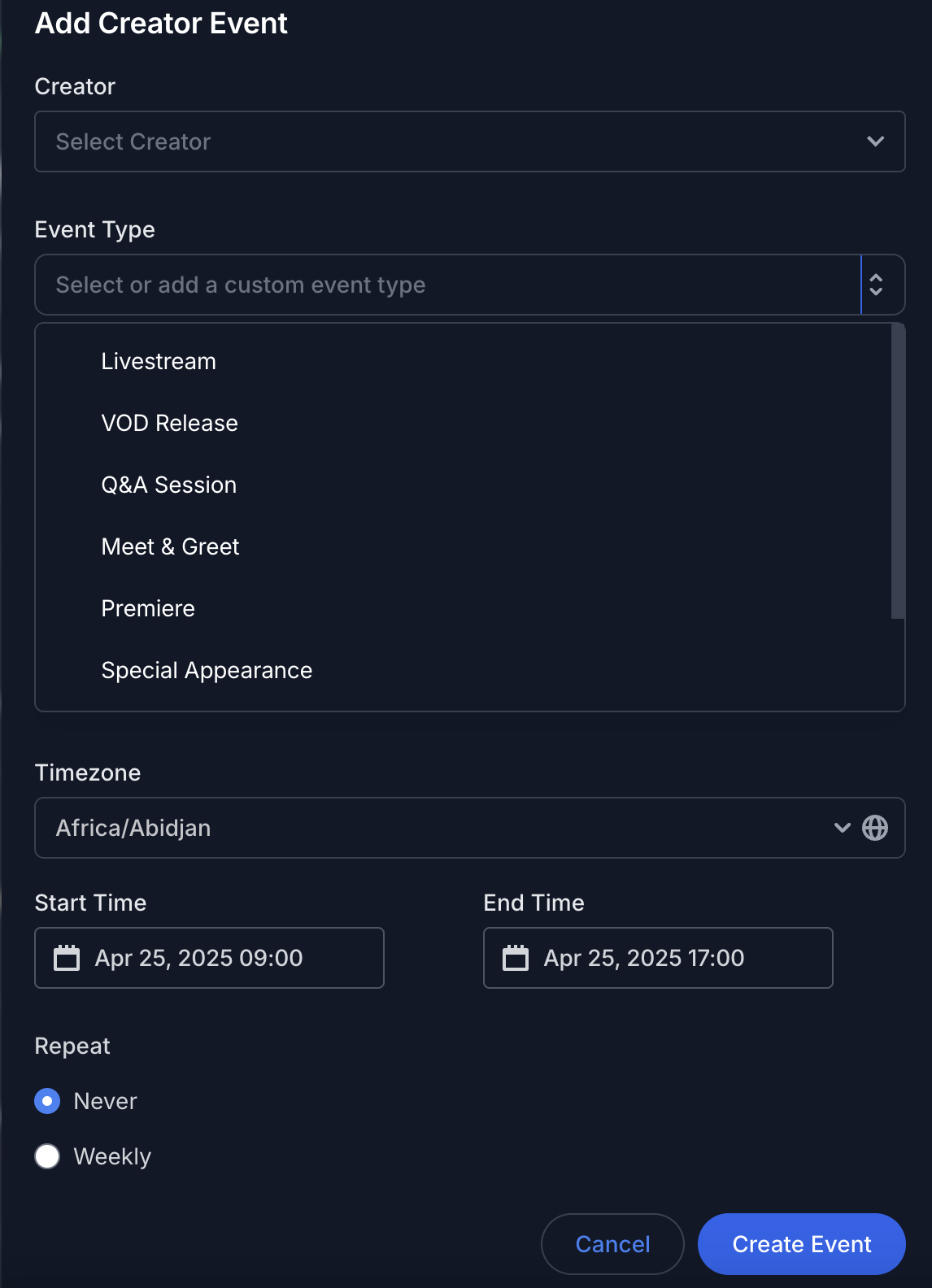
The system offers several pre-defined event types to choose from:
- Livestream: Schedule when a creator will be broadcasting live
- VOD Release: Mark when pre-recorded content will be published
- Q&A Session: Schedule interactive sessions with audiences
- Meet & Greet: Plan fan engagement opportunities
- Premiere: Schedule content premiere events
- Special Appearance: Track guest appearances or collaborations
Managing Recurring Events
When creating or updating a recurring event:
Under Repeat, select "Weekly"
Choose which days of the week the event should repeat on
Set an end condition if needed:
- Never: The event repeats indefinitely
- On: The event ends on a specific date
Adding Shift Time (Quick Add)
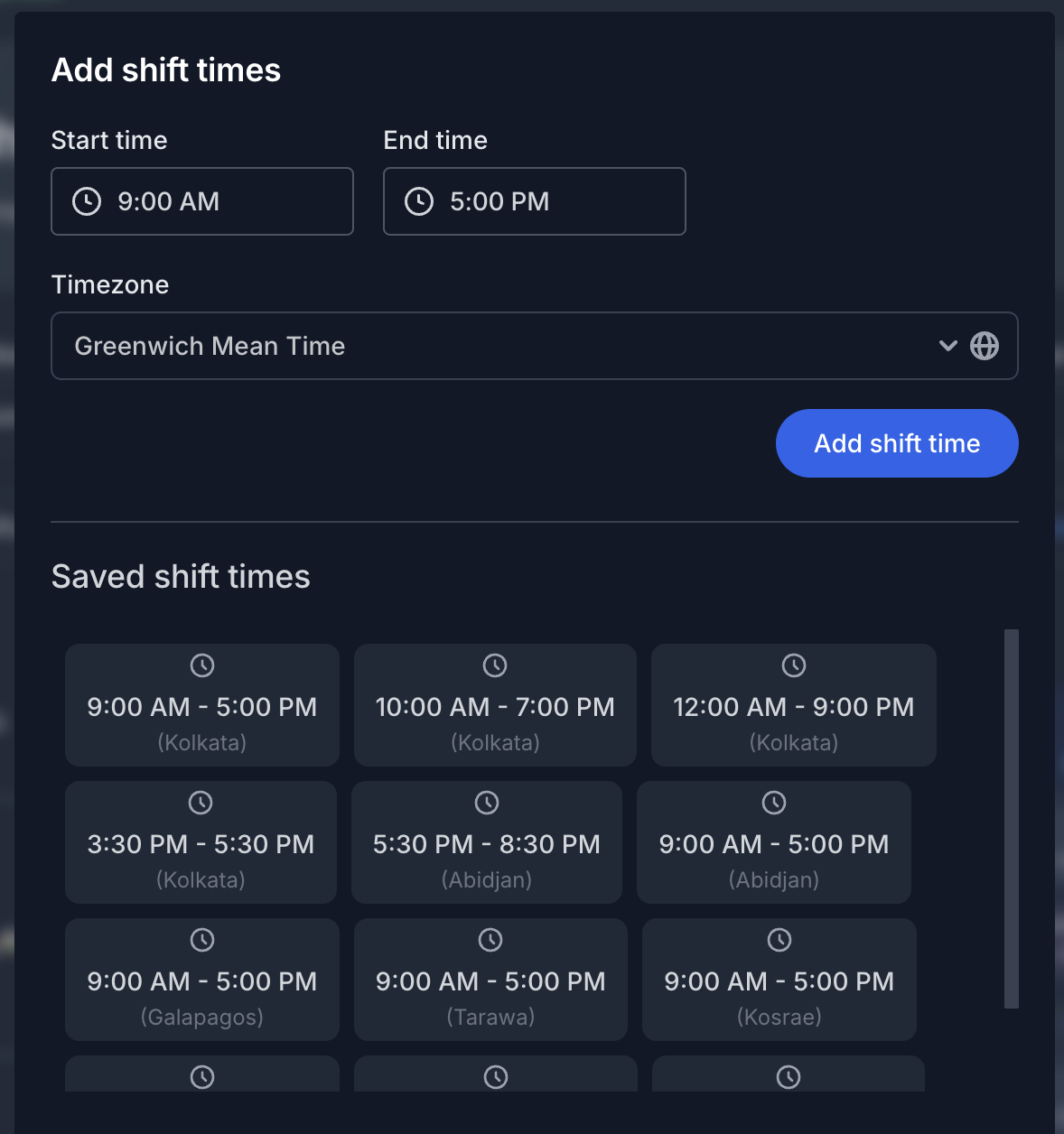
Click the “Add Shift Time” button to quickly add a new shift directly from the calendar view, without opening the full shift creation modal.
Updating Creator Events
Click on an existing event from the calendar view
Make your desired changes
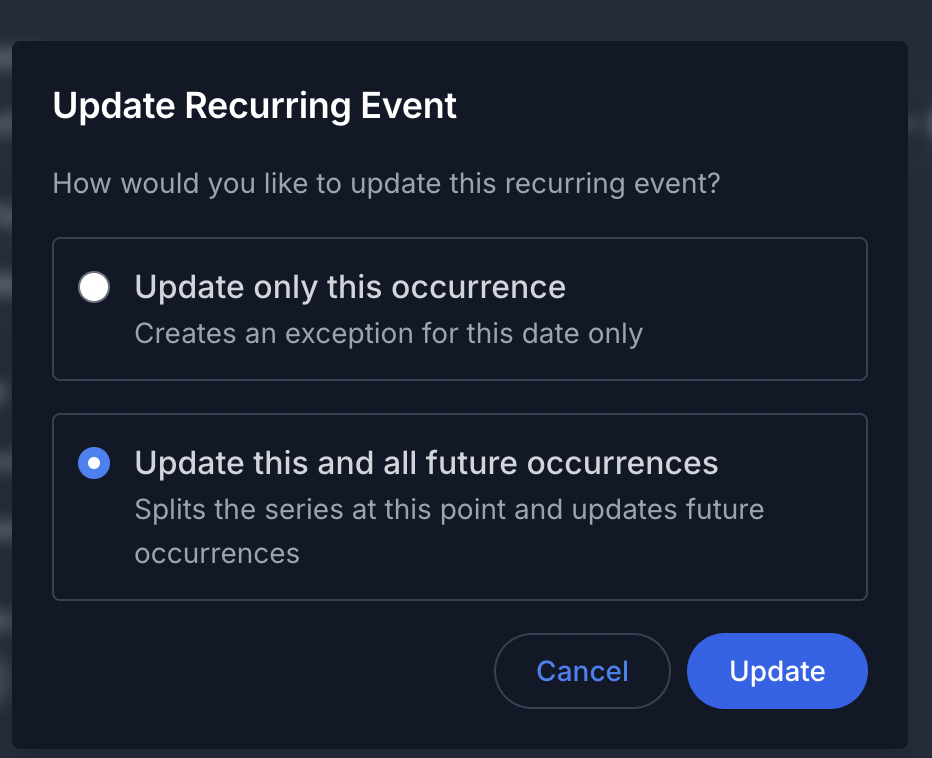
For recurring events, specify how to apply the update:
- Update only this occurrence
- Update this and all future occurrences
Click "Update Event" to save
Deleting Creator Events
Click on the event you want to remove
Click the "Delete Event" button
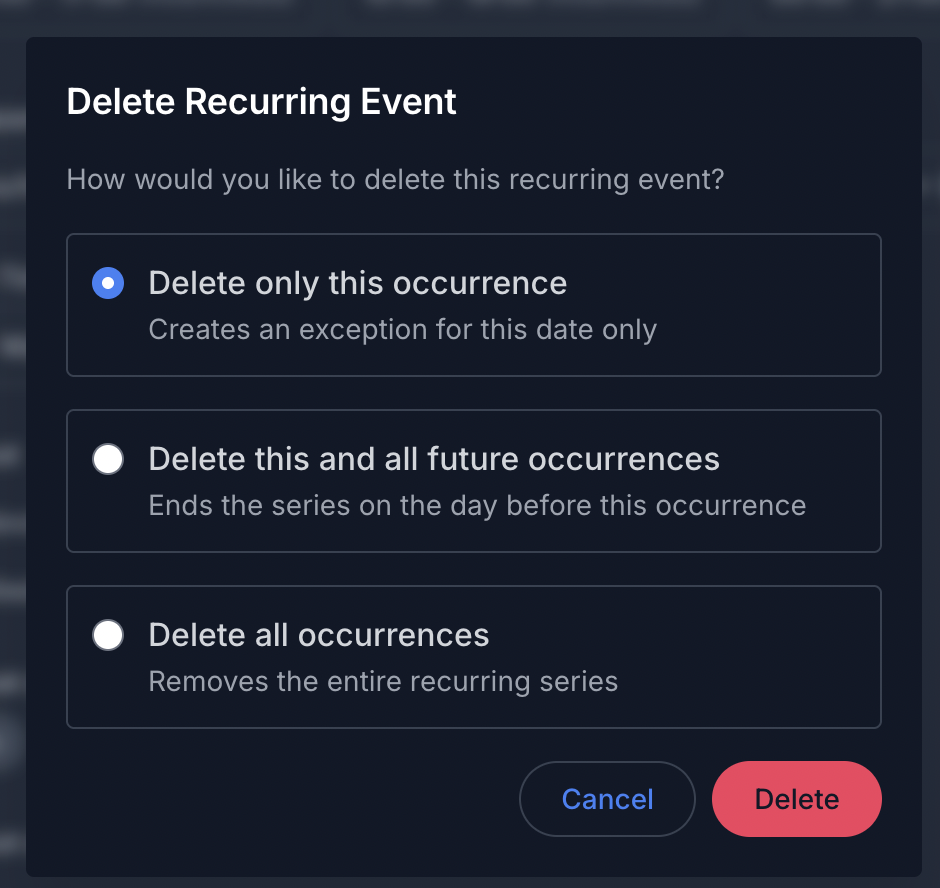
For recurring events, choose an option:
- Delete only this occurrence
- Delete this and all future occurrences
- Delete all occurrences
Confirm deletion
Tips for Effective Event Management
- Create events well in advance to ensure proper team preparation
- Use the notes field to add important details about event requirements or special instructions
- Coordinate creator events with team member shifts to ensure proper support for each event