
Revenue Classification for Tracking & Trial Links
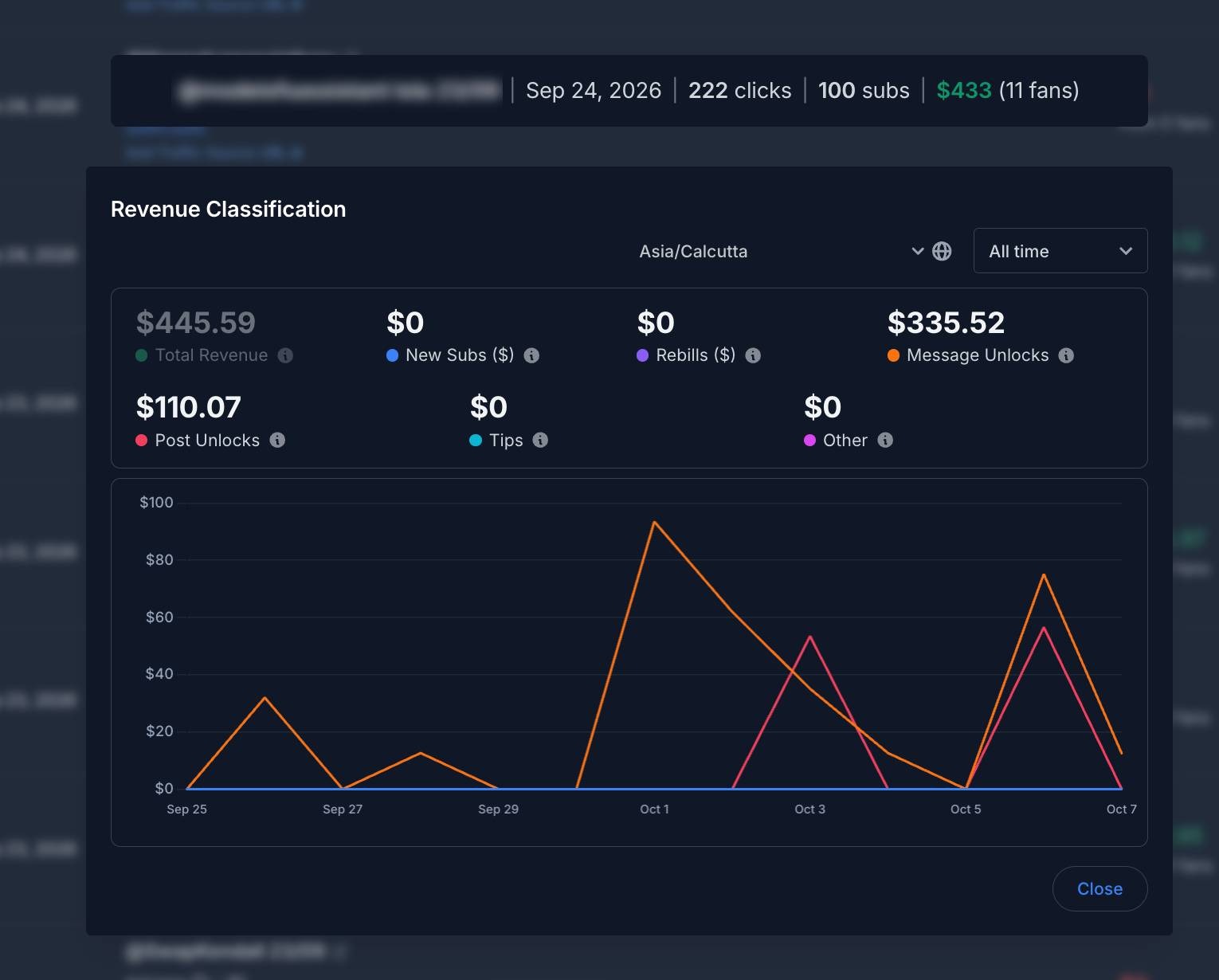
Ever wondered where a promo's revenue actually comes from? Every Tracking Link and Free Trial Link now has a Revenue Classification view that breaks the link's revenue down by source.
- Click the pie-chart icon on any link's row (next to View Performance over Time) to open the breakdown
- See one tile per revenue source — new subs, rebills, message unlocks, post unlocks, tips, and other plus Total Revenue
- A chart plots each source over time; click any tile to show or hide that source on the chart, or select Total Revenue to see just the overall trend
- Pick a period (All time, Today, Last week, Last month, or a custom date range) and a timezone, so the numbers line up with how you run campaigns
Now you can tell at a glance whether a link is driving one-time unlocks or building recurring subscription revenue and compare links on more than just the total.
Revenue Classification is available on the Pro Plan.
Choose Exactly What Revenue Data You Share
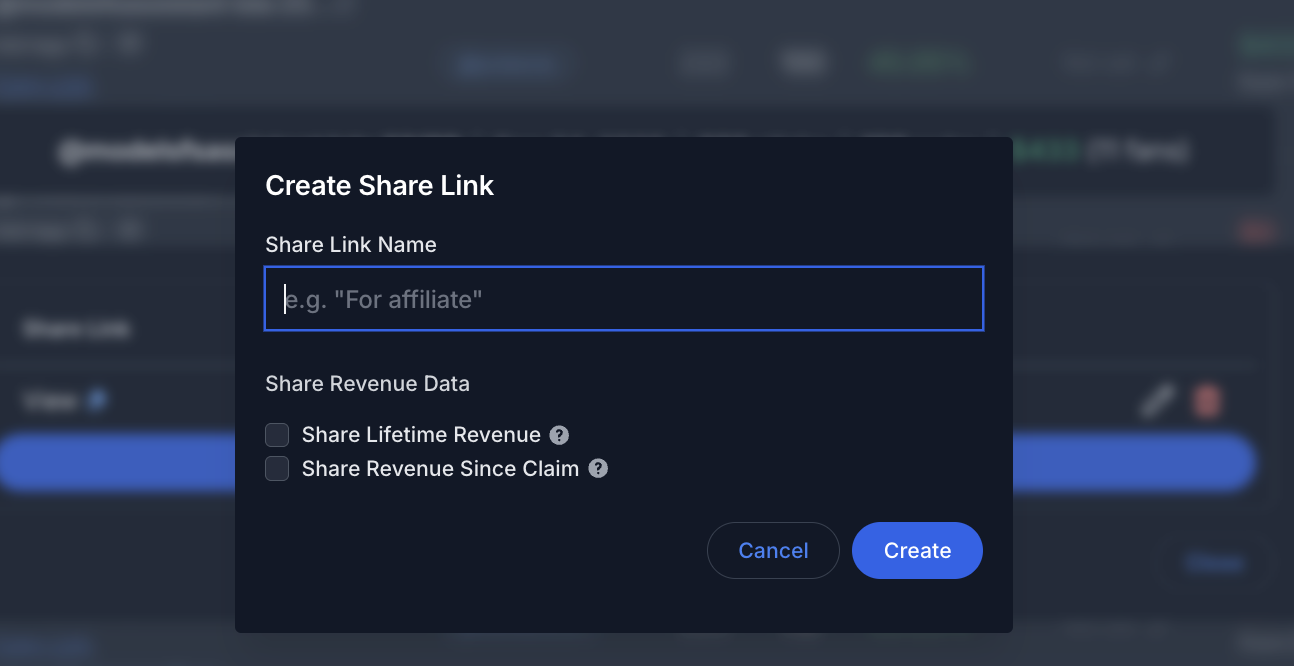
Share links let you show a tracking or trial link's performance to people outside your agency — a creator, a traffic partner, an affiliate. Until now, revenue sharing was all-or-nothing: one toggle. You now control exactly which revenue figures appear:
- Share Lifetime Revenue — the total lifetime revenue generated by subscribers claimed through the link
- Share Revenue Since Claim — only the revenue generated by subscribers after they were claimed through the link
You'll find both checkboxes under Share Revenue Data when you click Share on a link and create or edit a share link.
See a Fan's Last Spend at a Glance
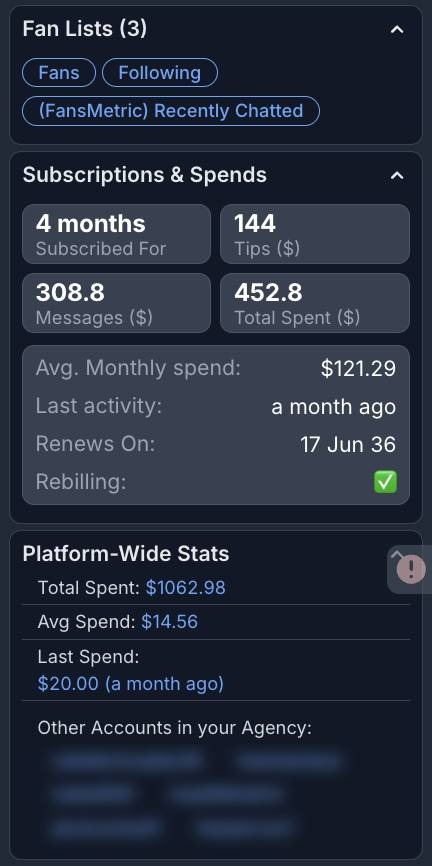
When you open a fan's info sidebar in Messages Pro or the Chatting Client, the Platform-Wide Stats card (on the Fan Overview tab) now shows a Last Spend row. It the amount of the fan's most recent purchase and how long ago it happened.
Together with the new Avg Spend row (the fan's average per purchase), your chatters can now read a fan's spending rhythm without leaving the conversation: a big spender who's gone quiet for two weeks is a very different conversation than one who unlocked something yesterday.
Chatters Can Now Work on Multiple Teams at Once
Covering for a teammate no longer means flipping back and forth between teams. Chatters can now add up to 5 extra teams alongside their primary team, and those teams' creators appear side by side in the Chatting Client and Messages Pro.
- At the bottom of the account sidebar, just above the Team Selector, click Add team

- Tick the teams you're covering — the button shows who you've added, and hovering shows the full "Also working on" list

- Your selection sticks across sessions and is shared between the main window and Messages Pro, so you set it once per shift, not once per tab.
Chatters can only add teams they already belong to, so there's nothing new for managers to configure. Assign a chatter to the team they're covering, and they can pick it up themselves.