
Bump Messages are short, automatic messages that send when a fan triggers an event. They're great for re-engagement without manual effort, and they work whether or not AI Chatter is enabled.
Before You Begin
Accessing Bump Messages
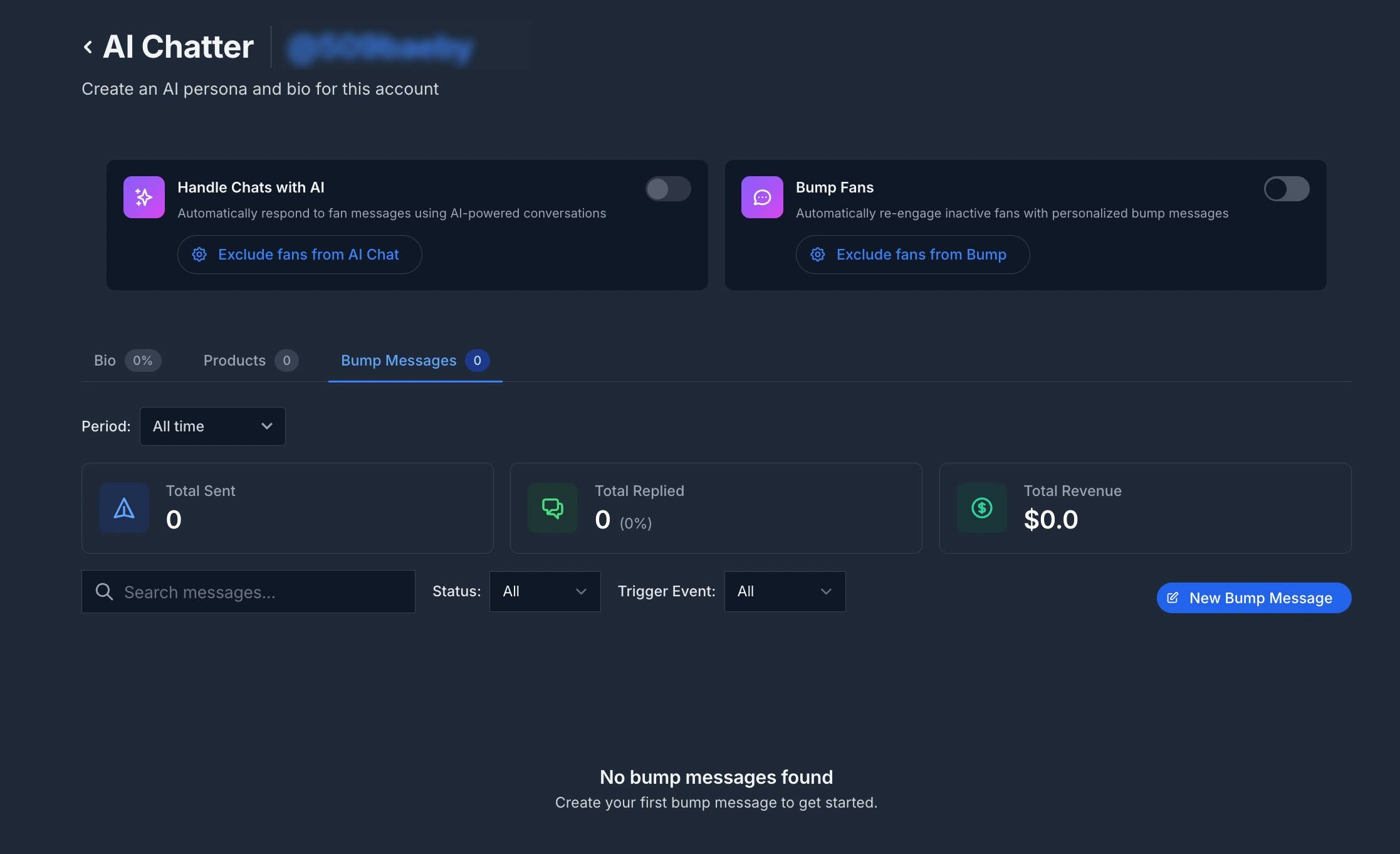
Go to AI Chatter in the left navigation menu, click Setup, then click any connected account to open the Creator AI Settings. From there, switch to the Bump Messages tab.
You'll see:
- A search bar
- Filter toggles for Live/Draft and trigger event
- A statistics panel showing total sent, replied, reply rate, and average reply time
- The "New Bump Message" button
- A list of existing bump messages if created
Creating a Bump Message
Click "New Bump Message"
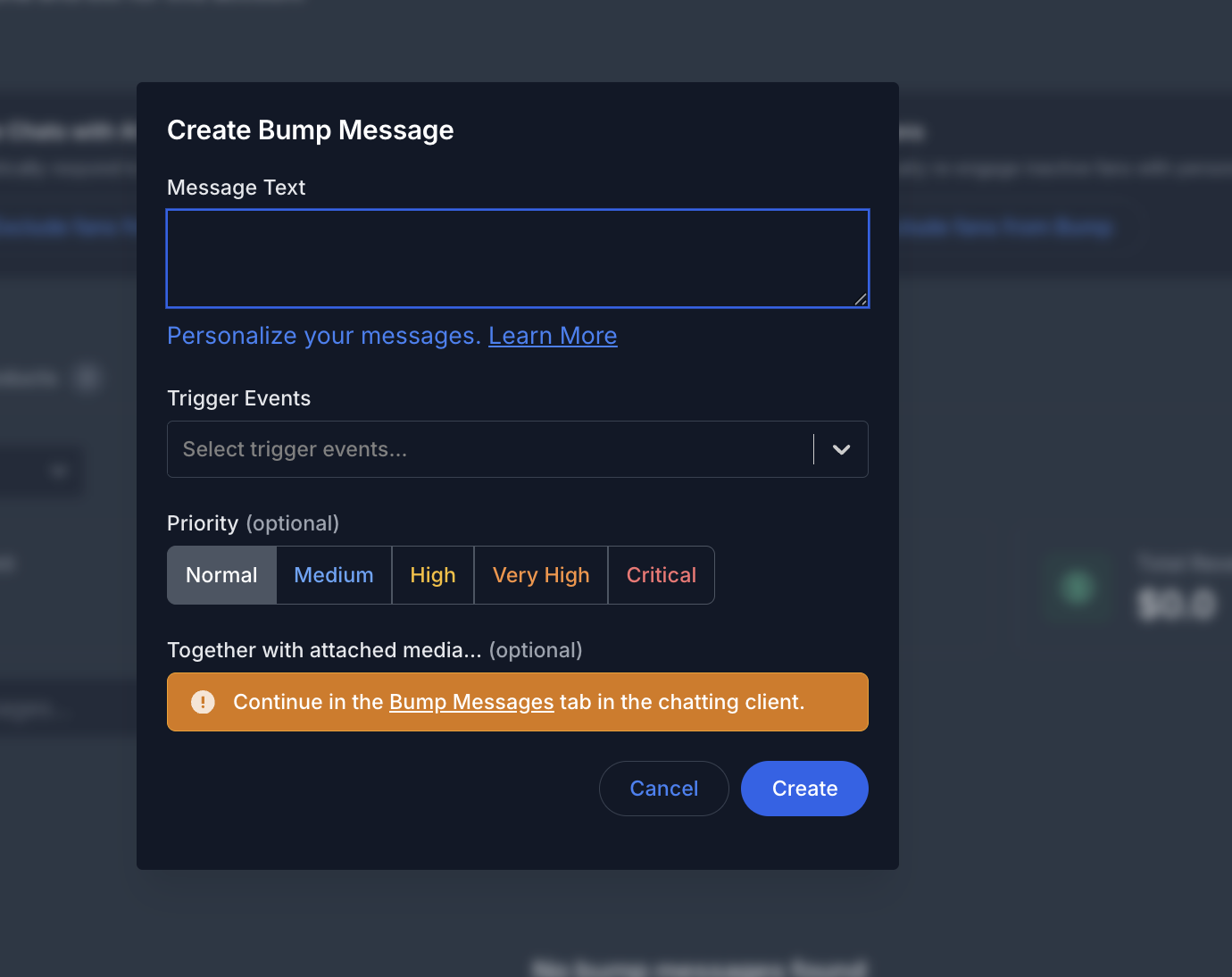
Fill in the form:
- Message Text - The message itself. You can use template variables like
{first_name}or{custom_name}to personalize. A live preview appears below. - Trigger Events - Pick one or more: Comment, Online, Like, Tip, or Unlock
- Priority (optional) - Choose Normal, Medium, High, Very High, or Critical. Higher priority messages take precedence when multiple bumps qualify at the same time.
- Attached media (optional) - Pick preview media (free, fans see without paying) and/or paid media from the Vault
- PPV Price - Required if paid media is attached
- Release forms (optional, required if media features multiple people)
- Message Text - The message itself. You can use template variables like
Click "Create" to save
Trigger Events Explained
- Comment - Sends when a fan comments on a post
- Online - Sends when a fan comes online
- Like - Sends when a fan likes a post
- Tip - Sends when a fan sends a tip
- Unlock - Sends when a fan unlocks a PPV
Editing or Deleting
- Click the edit icon to update an existing bump message
- Click the delete icon to remove one
- Toggle the row's status to enable or disable a message without deleting it
Configuring Bump Message Settings
Click "Exclude fans from Bump" (gear icon) on the Bump Fans card to open the settings dialog.
Enable Bump Messages
Toggle Enable Bump Messages on to activate Bump Messages for the account.
Auto Unsend
Automatically unsend bump messages if a fan hasn't replied within a set time.
- Auto Unsend after [X] hours (max 48 hours) and [X] minutes
Cooldown
Skip sending a bump if the fan was recently messaged.
- Skip fans messaged within [X] hours
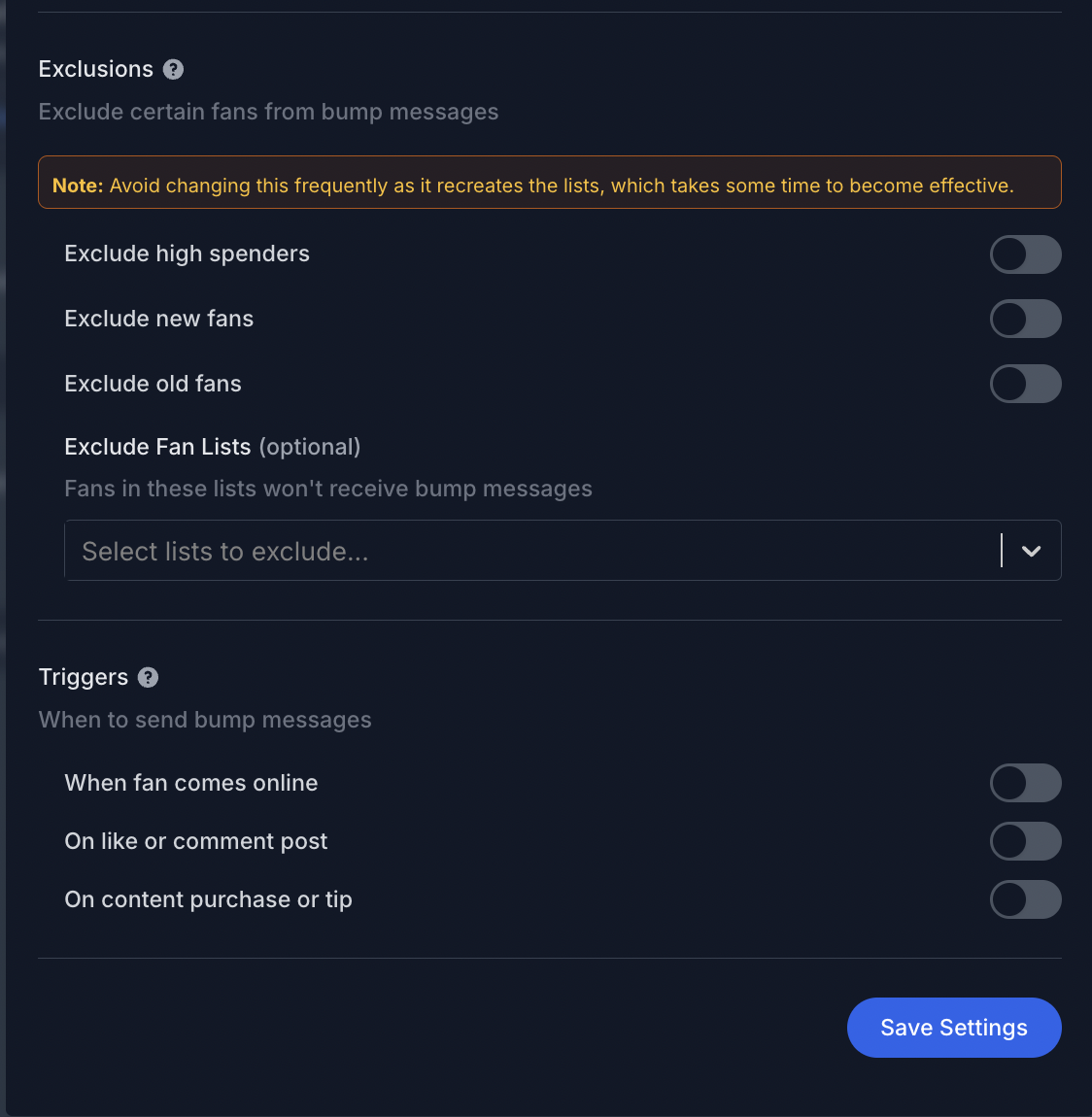
Exclusions
Choose which fans should not receive bump messages:
- Exclude high spenders above a chosen threshold
- Exclude new fans subscribed less than the chosen number of days
- Exclude old fans subscribed more than the chosen number of days
- Exclude Fan Lists - Pick specific fan lists to exclude
Triggers
Choose which events should automatically send a bump message:
- When fan comes online
- On like or comment post
- On content purchase or tip
Click "Save Settings" when done.
Statistics
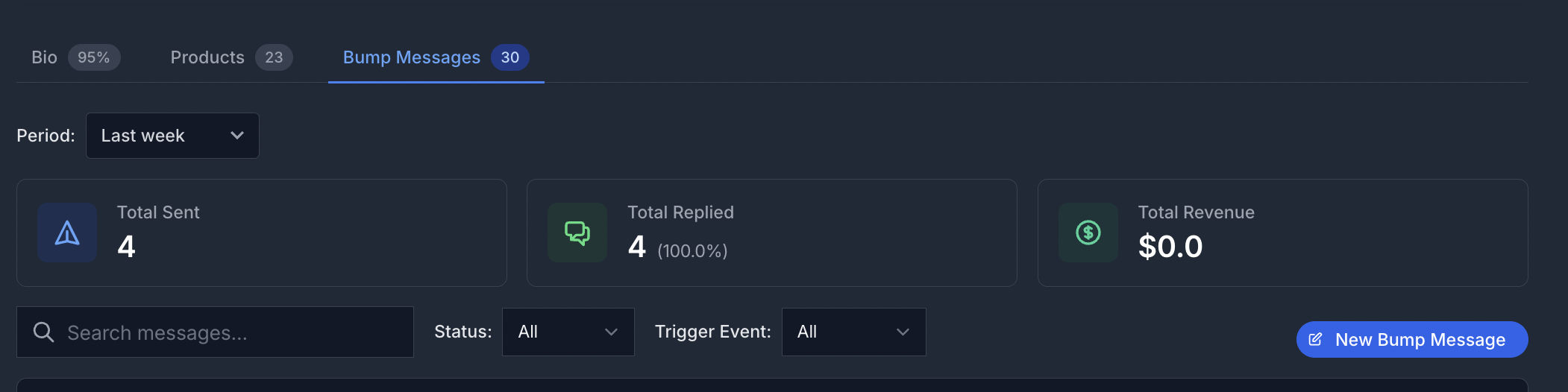
The statistics panel at the top of the Bump Messages tab shows performance for the selected period:
- Total messages sent
- Total replied
- Reply rate
- Average reply time
Use the date range picker to switch between All time, Last hour, Today, Last week, Last month, or a Custom range.
Each individual bump message also tracks its own Sent count, Reply count, and Reply rate, shown in the messages table.
Things to Keep in Mind
- Bump Messages and Auto Online Messages don't run together - enabling Bump Messages disables Auto Online Messages.
- Changing exclusion rules rebuilds the underlying fan lists, so try not to change them too frequently.
- Fans on your exclusion lists won't receive bump messages, even if they trigger an event.
- Higher priority bumps take precedence when multiple messages qualify for the same fan at the same time.